

Beer & Wine Label Submissions
Overview
Some product labels require a Certificate of Label Approval/Exemption (COLA) for products regulated by the Alcohol and Tobacco Tax and Trade Bureau (TTB). Any change to the label that requires approval or exemption from the TTB must be approved by the Cannabis & Alcohol Regulation Division (CARD) Distribution Bureau prior to the product entering the Montana market.
The department reviews and approves beer and wine labels before they are sold in the state. All label requests must be submitted electronically through the state's TransAction Portal (TAP). This guide provides instructions for submitting beer and wine labels through TAP.
Unsure whether you need to submit a beer label? See the Label and Product Approval Requirements Fact Sheet (PDF).
How to Submit a Beer or Wine Label on TAP
Businesses may submit up to 10 labels per request.
-
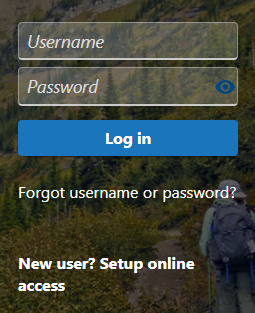
Sign in to your TAP business account. Select New User only if you need to create an account.
-
Select the Summary tab, then select the More link for the account that needs to register the labels.

-
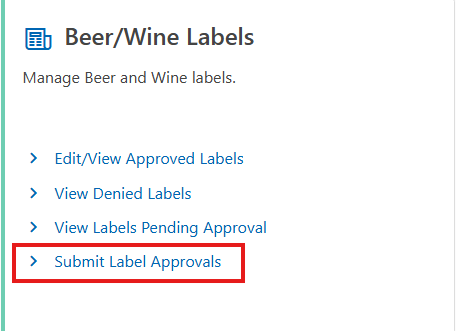
Select Submit Label Approvals to submit a label or group of labels for approval. Read through the instructions on beer and wine definitions.
-
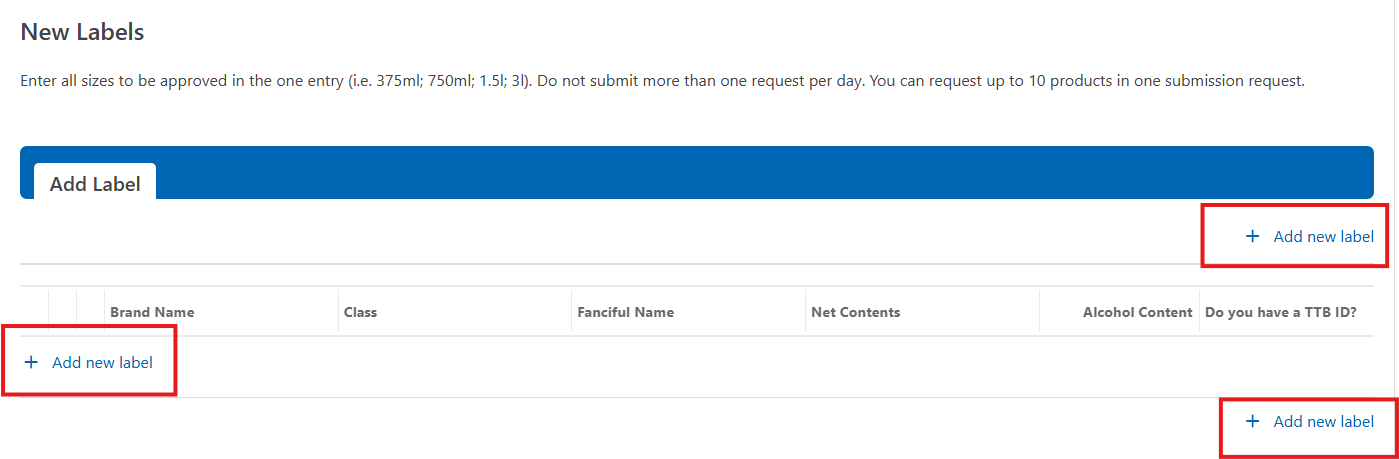
Select Next, then select one of the Add new label links. Scrolling down, you can also view any existing labels and their status.
-
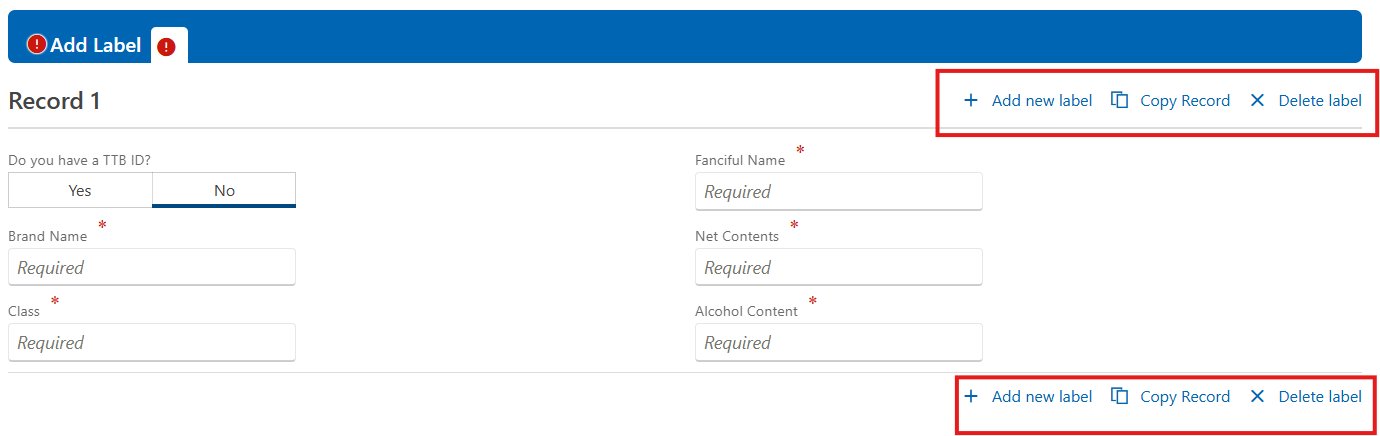
Enter the label information. Use the command options to edit each label's information if an error occurs. You may have up to 10 product tabs, one for each label. Choose Add new label to add more labels. Use the Delete label option to remove labels from the request, if needed.

-
Use the navigation buttons at the bottom of the screen to move between pages or cancel your request.
-
Select Next to add attachments or continue with submitting the request. Multiple attachments may be uploaded to a request.
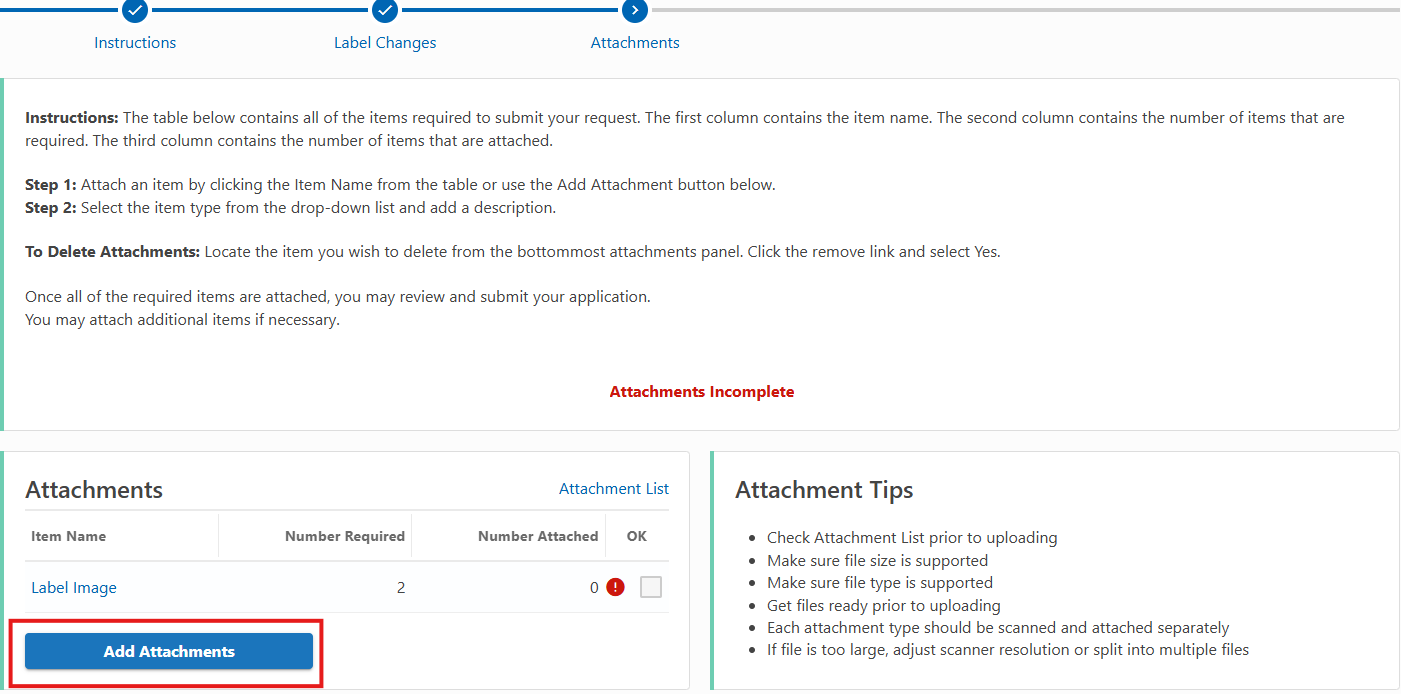
-
Select Next to finish the submission, then confirm by choosing Submit. A confirmation message will show, and a tracking number will be provided.
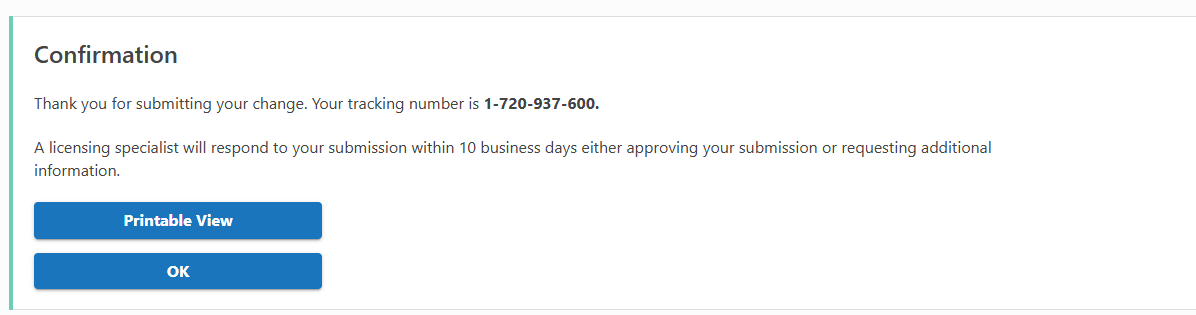
After Label Approval
Once label submissions are approved by the CARD Distribution Bureau:
- The brewery or winery needs to submit labels for approval.
- Enter into an agreement with a distributor to get the product to wholesalers (for wineries and breweries outside of Montana).
- Breweries and wineries outside the state of Montana are required to enter into a distributor's agreement with the wholesaler.
- The wholesaler is responsible for submitting that agreement to the department electronically via TAP within 60 days of it being executed.
Questions
Contact DORCARDEducation@mt.gov.
Legal References
All licensees must comply with all federal and Montana alcoholic beverage laws and rules: MCA 16-1-106, 16-4-107, and ARM 42.13.201, 42.13.203, 42.13.204, 42.13.221
